The Best Budget Monitors for Working From Home
How we picked: we weigh the strongest independent expert reviews, real manufacturer specs, and thousands of verified owner reviews, then name one clear pick per budget and use case. No fake lab tests, and we say plainly what we’d skip. Prices change, so we link out for today’s. Last checked 2026-07-30.
A good work-from-home monitor doesn't need to be expensive or built for gaming. It needs a comfortable size, sharp text, an easy-on-the-eyes IPS panel, and enough ports to keep your desk tidy. These seven picks cover everything from a bare-bones second screen to a single-cable USB-C setup for a laptop.
Watch the 60-second version
 🦉 #1 PICK
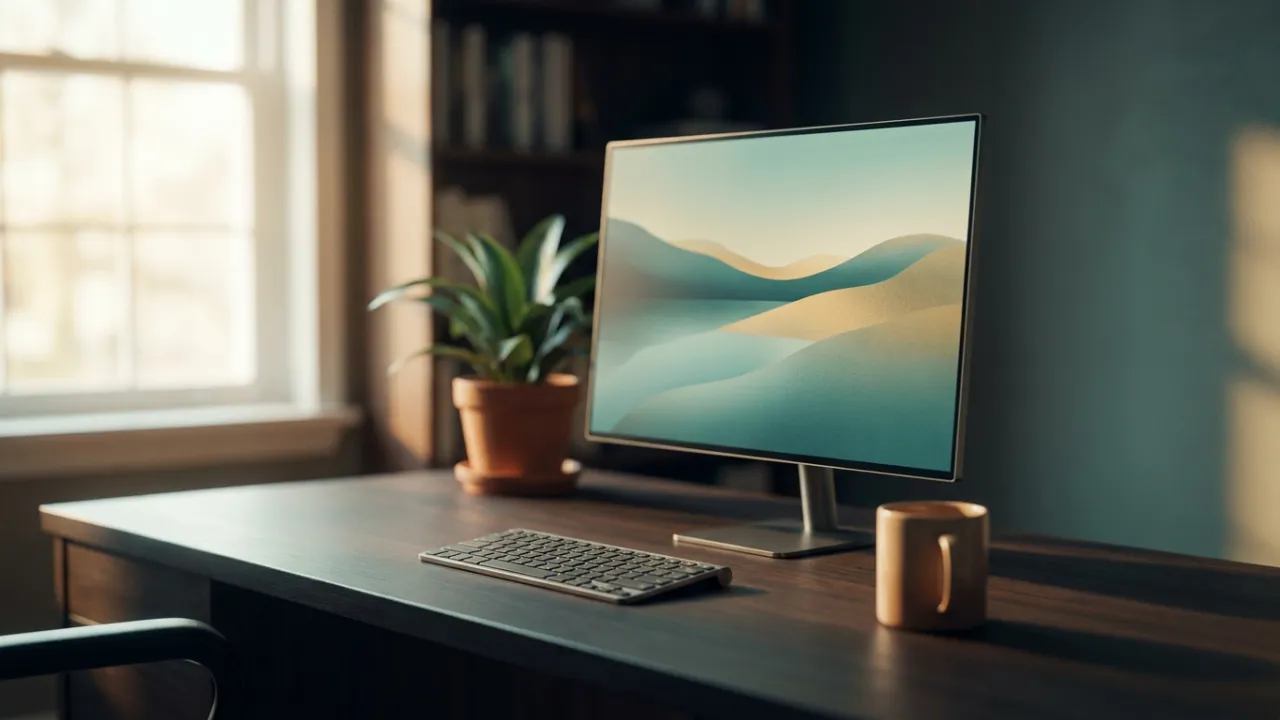
Dell S2722QC 27-inch 4K USB-C Monitor
The closest thing to a plug-and-play docking-station experience at a mainstream price.
The 7 top picks
Dell S2722QC 27-inch 4K USB-C Monitor
A one-cable laptop deskBest for: Laptop users who want to charge, drive the display, and pass data through a single USB-C cable.
This is the monitor most work-from-home laptop owners should look at first. The USB-C port carries video and delivers power to charge many laptops, so you plug in one cable and you're working. The 4K IPS panel keeps text crisp, and the built-in speakers cover video calls in a pinch.
- USB-C with laptop charging over one cable
- Sharp 4K IPS panel
- Height, tilt, and pivot adjustable stand
- Built-in speakers are only okay
- Not aimed at fast-motion gaming
🦉 Owl's take: The closest thing to a plug-and-play docking-station experience at a mainstream price.
HP M27fq 27-inch QHD Monitor
The size-to-sharpness sweet spotBest for: People who find 1080p a touch soft at 27 inches but don't want to pay for 4K.
At 27 inches, 1440p hits the sweet spot: noticeably sharper than 1080p without the scaling headaches some apps still have at 4K. The IPS panel and thin bezels make it a clean centerpiece or an easy dual-monitor match. A solid everyday productivity screen.
- 1440p is sharp at 27 inches
- Clean, low-bezel design
- Good color for the money
- Tilt-only stand, no height adjustment
- No USB-C
🦉 Owl's take: The resolution most 27-inch desks actually want, at a fair price.
Dell S2721H 27-inch 1080p Monitor
A dependable everyday office screenBest for: Anyone who mainly lives in documents, browsers, email, and video calls.
A no-drama 27-inch IPS screen from a brand known for reliable panels and good support. 1080p is plenty for spreadsheets, writing, and meetings, and the built-in speakers plus clean styling make it an easy work-from-home default. It won't wow you, and that's the point.
- Reliable IPS panel
- Built-in speakers for calls
- Clean, office-friendly look
- 1080p looks a bit soft at 27 inches
- Tilt-only stand
🦉 Owl's take: The safe, boring, gets-the-job-done pick, and there's real value in that.
ASUS VA27DQSB 27-inch Monitor
Ergonomics on a budgetBest for: Anyone who wants to raise, tilt, swivel, and pivot the screen without buying a separate arm.
Where a lot of budget monitors skimp on the stand, ASUS includes a full ergonomic one here, plus a built-in USB hub for plugging in peripherals. The 1080p IPS panel is fine for daily office work, and the flexibility to get the screen to the right height is a genuine comfort win.
- Full height/tilt/swivel/pivot stand
- Built-in USB hub
- Eye-care flicker-reduction features
- 1080p only, so not the sharpest at this size
- Speakers are basic
🦉 Owl's take: You're really paying for the adjustable stand and USB hub, and they're worth it.
LG 27UP600 27-inch 4K Monitor
Sharpest text without USB-C chargingBest for: Photo, detail, and small-font people who don't need laptop charging over one cable.
A straightforward 4K IPS screen with strong color coverage and HDR support, aimed at people who want maximum sharpness for editing and reading fine print. It has USB-C for video, but not the high-wattage laptop charging that the Dell S2722QC offers, so check your needs there.
- Very sharp 4K IPS panel
- Strong color coverage
- Height-adjustable stand
- USB-C is display-only, low charging power
- HDR is entry-level
🦉 Owl's take: Pick this over the Dell if you want 4K but don't care about charging a laptop from the monitor.
Samsung T55 27-inch Curved Monitor
A gentle curve and deep contrastBest for: People who like a slightly immersive, contrasty screen and sit fairly close.
The curve is subtle but makes a single large screen feel a bit more wrapped around you, and the VA panel delivers deeper blacks and stronger contrast than typical IPS. Text and colors shift more if you view it off-angle, which is the usual VA trade-off, but head-on it looks great for the price.
- High-contrast VA panel
- Gentle immersive curve
- Understated design
- Narrower viewing angles than IPS
- Tilt-only stand
🦉 Owl's take: A nice change of pace if you want contrast and a curve over wide viewing angles.
ViewSonic VA2456-MHD 24-inch Monitor
The cheapest sensible screenBest for: Anyone adding an inexpensive second monitor or setting up a first budget desk.
At 24 inches, 1080p actually looks reasonably crisp, so this hits a smart size-to-resolution match at the low end. It has the modern ports you need and thin bezels that make it a tidy second screen. Don't expect an adjustable stand or great speakers, but for the money it's hard to fault.
- 1080p looks fine at 24 inches
- Low price
- Thin bezels for dual-monitor setups
- Tilt-only stand
- Weak built-in speakers
🦉 Owl's take: The best pick when the goal is simply a clean, no-frills screen for as little as possible.
Compare all 7
| Pick | Best for | Size | Resolution | Panel | |
|---|---|---|---|---|---|
| Dell S2722QC 27-inch 4K USB-C Monitor | A one-cable laptop desk | 27 inch | 4K (3840x2160) | IPS | Check ↗ |
| HP M27fq 27-inch QHD Monitor | The size-to-sharpness sweet spot | 27 inch | QHD (2560x1440) | IPS | Check ↗ |
| Dell S2721H 27-inch 1080p Monitor | A dependable everyday office screen | 27 inch | 1080p (1920x1080) | IPS | Check ↗ |
| ASUS VA27DQSB 27-inch Monitor | Ergonomics on a budget | 27 inch | 1080p (1920x1080) | IPS | Check ↗ |
| LG 27UP600 27-inch 4K Monitor | Sharpest text without USB-C charging | 27 inch | 4K (3840x2160) | IPS | Check ↗ |
| Samsung T55 27-inch Curved Monitor | A gentle curve and deep contrast | 27 inch | 1080p (1920x1080) | VA (curved) | Check ↗ |
| ViewSonic VA2456-MHD 24-inch Monitor | The cheapest sensible screen | 24 inch | 1080p (1920x1080) | IPS | Check ↗ |
How we choose (and why we don't fake lab tests)
Plenty of sites claim a lab they don't have. We won't. The Gear Owl reads the strongest independent expert reviews, the real manufacturer specs, and thousands of verified owner reviews, then distills them into one clear pick per budget and use case. When a product shines only in specific conditions, we say so. And we link out for live prices, because a price printed today is wrong tomorrow — you deserve the real number, not a stale one.
What we'd skip (and why)
Being honest about what not to buy is half the value of a guide. These come up a lot — we'd pass.
How to choose
Size and resolution go together
For a normal desk, 24 to 27 inches is the sweet spot. At 24 inches, 1080p looks crisp. At 27 inches, aim for 1440p if you can, since 1080p starts to look a little soft. Go 4K only if you want the sharpest possible text and your apps scale well.
IPS vs VA vs TN
For work, IPS is the default: accurate color and wide viewing angles so the image stays consistent. VA trades some viewing angle for deeper contrast, which some people prefer for a single head-on screen. Skip TN panels for office work; their color and angles are the weakest.
Do you need USB-C?
If you work from a laptop, a USB-C monitor that charges it lets you connect power, display, and peripherals with one cable. It's a real quality-of-life upgrade. If you use a desktop, you can save money with HDMI or DisplayPort instead.
Frequently asked questions
Is 1080p or 1440p better for working from home?
It depends on screen size. On a 24-inch monitor, 1080p looks sharp and is great value. On a 27-inch monitor, 1440p is noticeably crisper and easier on the eyes for long days. 4K is even sharper but costs more and can require display scaling to make text a comfortable size.
Do I really need a USB-C monitor?
Only if you work from a laptop and want a clean single-cable setup that also charges it. For desktop users, or anyone fine with an extra cable, an HDMI or DisplayPort monitor does the same job for less money.
Is IPS or VA better for office work?
IPS is the safer choice for most people because of its accurate color and wide viewing angles. VA offers deeper contrast and darker blacks, which can look nice on a single screen, but colors shift more when you view it off to the side.
Does refresh rate matter for a work monitor?
Not much. Standard 60Hz to 75Hz is smooth enough for documents, email, browsing, and video calls. High refresh rates like 144Hz mainly help with fast-paced gaming.
What size monitor is best for a home office desk?
For most desks, 24 to 27 inches is ideal. A 24-inch fits smaller spaces and dual-monitor setups, while a 27-inch gives you more room for windows side by side.